HCL Appscan360 (Appscan360) - Usage
To use the HCL Appscan360 (Appscan360), the plug-in must be loaded, and an instance is created before you can configure the plug-in integration. You can define configuration properties either in the user interface or in a JSON file of a value stream.
Integration type
The Appscan360 plug-in supports endpoint integration and a scheduled event integration.
Endpoint Integration
You can use the Appscan360 plug-in’s endpoint integration to sync or import the scan data into DevOps Velocity’s application vulnerabilities metrics by triggering the API endpoint with GET or POST request.
The endpoint integration is listed in the following table.
Endpoints
| Name | Path | Request Method |
|---|---|---|
| Appscan360 Scan | Appscan360 | GET (For version 2.0.1 or later) or POST (For version 2.0.0 or earlier) |
Notes
The following two features are available from the plug-in:
- The plug-in imports historical scan data from Appscan360.
- To sync or import the scan data into DevOps Velocity, update the Appscan360 applications field in the plug-in configuration with the application names in Appscan360. The plug-in will import the latest scan data from Appscan360.
- The plug-in supports Appscan360 webhooks.
- The plug-in endpoint can be defined as a webhook in Appscan360. When the webhook is called by Appscan360 after every scan execution, the plug-in will run and import the scan data from Appscan360 to DevOps Velocity.
- To call out Appscan360 scan using REST API, pass the ‘build url’ as a ‘Comment’ as shown in the below example. As a result, the plug-in imports the ‘build url’ and associate the scan result to the specific ‘build’ / ‘build url’ in DevOps Velocity.
curl --location --request POST 'https://ccs.appscan360.internal/api/v4/Scans/MobileAnalyzer' \ --header 'Content-Type: application/x-www-form-urlencoded' \ --header 'Authorization: Bearer bearer-token-goes-here' \ --data-urlencode 'ApplicationFileId=file-id-goes-here' \ --data-urlencode 'ScanName=scan-name-goes-here' \ --data-urlencode 'AppId=Appscan360-AppId-goes-here' \ --data-urlencode 'Execute=true' \ --data-urlencode 'Comment=https://build-url-goes-here'- Running the Appscan360 scan using User Interface (UI) will not associate the scan result to the build url in DevOps Velocity.
- To use the webhook, you must install AppScan presence on the machine where DevOps Velocity is running. For more information, see Appscan360 documentation.
- The following is an example of creating a webhook in Appscan360.
curl curl --location --request POST 'https://ccs.appscan360.internal/api/V4/Webhooks' \
--header 'Content-Type: application/x-www-form-urlencoded' \
--header 'Authorization: Bearer bearer-token-value-goes-here' \
--data-urlencode 'PresenceId=presence-id-goes-here' \
--data-urlencode 'Uri=plugin-endpoint-goes-here?ScanExecutionId={SubjectId}' \
--data-urlencode 'Event=ScaneExecutionCompleted' \
--data-urlencode 'Global=true'
The following example shows calling the plug-in end point using a ‘non webhook’ method, such as CURL, Postman, or as a part of the CI/ CD pipeline.
Send an HTTP GET (For version 2.0.1 or later) or HTTP POST (For version 2.0.0 or earlier) request to your endpoint.
Sample endpoint:https://pluginEndpoint/Appscan360
The payload for the POST is shown below.
{"scanExecutionId":"", "buildUrl": ""}Payload Details
| Name | Description | Required |
|---|---|---|
| scanExecutionId | The scan Execution ID from the scan ran in Appscan360. It is a mandatory field to render the scan results in Insights. | Yes |
| buildUrl | The build URL from the CI/CD tool such as Jenkins, HCL DevOps Deploy and so on. It is an optional field which links the Appscan360 scan results with DevOps Velocity | No |
Scheduled Integration
You can use the HCL Appscan360’s scheduled event integration to automatically sync or import the scan data into DevOps Velocity’s application vulnerabilities metrics at regular interval of time. Currently, HCL Appscan360 sync or import scan data from HCL AppScan360 to DevOps Velocity at an interval of 5 minutes.
Integration Type
| Name | Description |
|---|---|
| Sync Appscan360 Data | Sync scan data from Appscan360 |
Integration
There are two methods to integrate the plug-in:
- Using the user interface
- Using a JSON file
The tables in the Configuration properties topic describe the properties used to define the integration.
Using the user interface
To install the plug-in, perform the following steps:
- From the home page, click Settings > Integrations > Available.
- Under the Action column for the Appscan360 plug-in, click Install.
To integrate the plug-in, perform the following steps:
- From the home page, click Settings > Integrations > Plugins.
- In the Action column for the Appscan360 plug-in, click Add Integration.
- On the Add Integration page, enter values for the fields used to configure the integration and define communication.
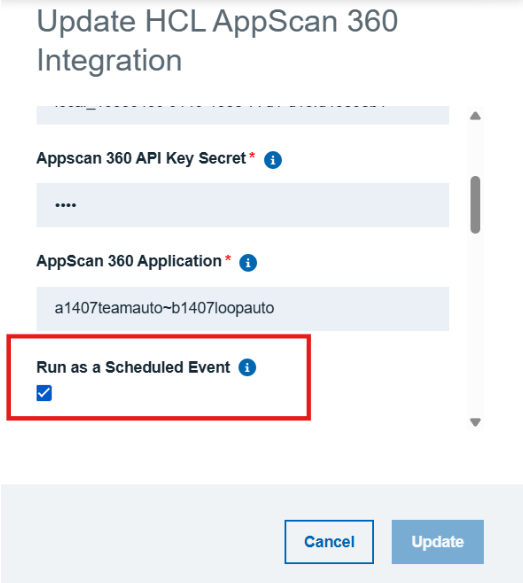
- Select the Run as Scheduled Event checkbox. Note: Select the checkbox only if you want to integrate the plug-in as a scheduled event and clear the checkbox if you want to integrate the plug-in as an endpoint.
- Click Save.
Note: To ensure visibility in VSM metrics, add the workflowId during integration. Before configuring, create the value stream, and then add the workflowId when prompted during the integration process.
Using a JSON file
The JSON file contains the information for creating a value stream. Within the JSON file there is a section for integrations. In this section the plug-in properties can be defined.
- From a value stream page, download the value stream map. The value stream map is a JSON file used to define integrations.
- Edit the JSON file to include the plug-in configuration properties.
- Save and upload the JSON file. This replaces the current JSON file with the new content.
- View the new integration on the Integrations page.
Minimum permission to integrate with HCL AppScan360 (Appscan360)
The HCL AppScan360 (Appscan360) Account used to generate the token must have access to the project which is being integrated with DevOps Velocity.
Configuration properties
The following tables describe the properties used to configure the integration. Each table contains the field name when using the user interface and the property name when using a JSON file.
The General Configuration Properties table describes configuration properties used by all plug-in integrations. The HCL AppScan360 configuration properties table describes the configuration properties that define the connection and communications with the DevOps Velocity server. When using the JSON method to integrate the plug-in these properties are coded within the properties configuration property.
Some properties might not be displayed in the user interface, to see all properties enable the Show Hidden Properties field.
General configuration properties
| Name | Description | Required |
|---|---|---|
| image | The version of the plug-in that you want to use. To view available versions, see the UrbanCode DockerHub. If a value is not specified, the latest version is used. | No |
| name | An assigned name to the value stream. | Yes |
| properties | List of configuration properties used to connect and communicate with the Application Security on server. Enclose the properties within braces. | Yes |
| tenant_id | The name of the tenant. | Yes |
| type | Unique identifier assigned to the plug-in. The value for the Application Security plug-in is Appscan360Plugin | Yes |
Configuring Appscan360 integration in DevOps Loop
End-to-End Validation Steps for Appscan360 Integration
Prerequisites
- Create a teamspace and loop. Already PCBD setup is done as part of loop creation.
- Configure Appscan integration in measure
- Ensure that the VSM Application Name exactly matches the Appscan360 Application Name. This mapping is required for scan results to be associated correctly within Velocity.
Validation Steps for DAST scan
- Plan Stage
- Create a new work item.
- Move the work item from one stage to another.
- Verify that the corresponding dot is displayed in the Value Stream Map (VSM).
- Source Control Stage
- Create a Pull Request (PR).
- Verify that the PR activity is reflected in Velocity.
- Merge the Pull Request.
- Verify that the merge activity is reflected in Velocity.
- Build Stage
- Observe that a new build is automatically triggered after the PR is merged.
- Verify that the build appears successfully in the pipeline.
- Deploy Stage
- Verify that a new application version is created from the completed build.
- Confirm that the new version is visible in the deployment pipeline.
- Check the target environment (for example, Dev) and verify that the new version is available for deployment.
- Appscan360 Security Scan
- Verify that a new Appscan360 scan is triggered for the application.
- Confirm that both SAST and DAST scans are initiated as configured.
- Note that DAST scans may take approximately 30 minutes or longer to complete.
- Wait for the scan execution to finish successfully.
- Deployment Verification
- After scan completion, verify that the new application version is deployed to the Dev environment.
- Confirm that the deployment event is reflected in the pipeline.
- Pipeline Verification
- Open the Pipeline view in Measure.
- Verify that:
- The new version appears as the pipeline input.
- The Dev stage shows the deployed version.
- Build, Scan, and Deployment stages are linked correctly.
- Insights Verification
- Navigate to Insights.
- Verify that scan data is displayed in the relevant charts and graphs.
- Confirm that records are generated for:
- Static Security Scan (SAST)
- Dynamic Security Scan (DAST)
- VSM Metrics Verification
- Open the Value Stream Map (VSM).
- Verify that dots are displayed for the completed stages.
- Open the metrics for the work item and confirm that:
- SAST results are displayed.
- DAST results are displayed.
- Scan metrics are associated with the correct application and version.
NOTE: We are mapping using buildUrl and commitSha to show metrics in the dots history in VSM. we are capturing it from comments.
Example: "Comment": "{"id":"ucd","commitsha":"1.0-696","buildurl":"https://10.134.119.143.nip.io/build/tasks/project/BuildLifeTasks/viewBuildLife?buildLifeId=696\",\"env\":\"a3004teamauto~a3004loopauto:A3004LOOPAUTO-DEV-ENV\"}"
Verification steps for SAST Scan
- Create a Work item in the Plan
- Create a PR for this work item in control
- As we merge the PR in Control , as part of the test data requirement , SAST scans are triggered.
- In Measure, The details of SAST scan can be seen in VSM with respect to the corresponding work item and also the insights
Example: "Comment": "{"id":"ucd","commitsha":"1.0-696","buildurl":"https://10.134.119.143.nip.io/build/tasks/project/BuildLifeTasks/viewBuildLife?buildLifeId=696\",\"env\":\"a3004teamauto~a3004loopauto:A3004LOOPAUTO-DEV-ENV\",\"prurl\":\"https://10.134.119.42.nip.io/control/a1407teamauto/b1407loopauto/pulls/63\" }"
HCL AppScan on Cloud configuration properties
| Name | Type | Description | Required | Property Name |
|---|---|---|---|---|
| Appscan360 API Key ID | String | The key ID to authenticate with the Application Security On server. | Yes | keyId |
| Key Secret | Secure | The key secret to authenticate with the Application Security On server. | Yes | keySecret |
| DevOps Velocity User Access Key | Secure | The user access key to authenticate with the DevOps Velocity server. | Yes | ucvAccessKey |
| Run as a Scheduled Event | Boolean | To integrate the plug-in as a Scheduled Event. Set this property to “true” to run the integration as a scheduled event. | No | isScheduledEvent |
| Proxy Password | Secure | The password used to authenticate with the proxy server. | No | proxyPassword |
| Proxy Server | String | The URL of the proxy server including the port number. The URL protocol can be http or https. | No | proxyServer |
| Proxy User Name | String | The user name used to authenticate with the proxy server. | No | proxyUsername |
| Appscan360 Base URL | String | The base URL of the Application Security on server. E.G. https://ccs.appscan360.internal/. | Yes | Appscan360Url |
| Appscan360 Application | Array | Application name in Appscan360 | Yes | application |
| Appscan360 Policies | Array | Comma separated list of Policy names in Appscan360 - eg: OWASP Top 10 Mobile 2016, International Standard - ISO 27002 | No | policies |
| Workflow Id | String | The value stream that this metric is associated. | No | workflowId |
JSON code sample
The following sample code can be used as a template to define the integration within the JSON file for a value stream. Copy and paste the template into the JSON file Integration section and make the appropriate changes.
"integrations": [
  {
    "type": "Appscan360Plugin",
    "tenant_id": "",
    "name": "",
    "properties":{
      "ucvAccessKey": "",
      "keyId" : "",
      "isScheduledEvent":"false",
      "keySecret": "",
      "Appscan360Url":""
    }
 }
]
Troubleshooting
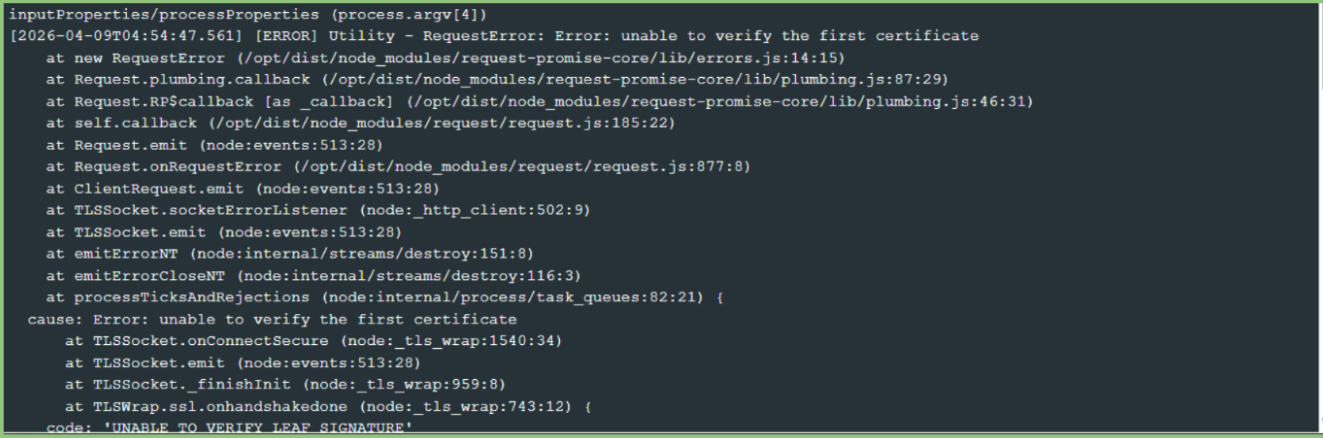
Certificate Issue
Solution:
- Add the required CA certificate during the AppScan360 configuration.
- Additionally, add the following environment variable to the Reporting Consumer deployment:
a. name: NODE_TLS_REJECT_UNAUTHORIZED
b. value: "0"
- This allows the Reporting Consumer to establish a connection when the AppScan360 endpoint uses a certificate that is not trusted by the Node.js runtime.
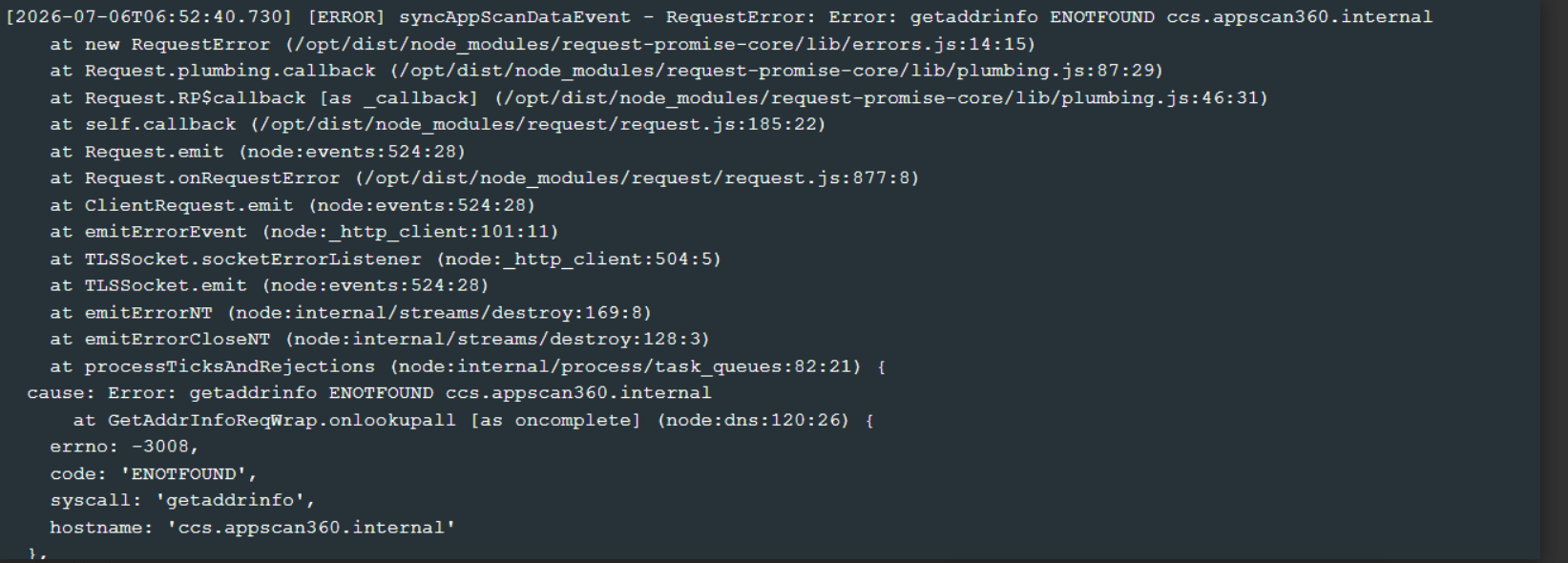
AppScan360 URL is Not Accessible – Host Entry Missing
If the AppScan360 URL is not accessible, you may encounter a connection or host resolution error.
Solution:
- Add the AppScan360 host entry to the Windows hosts file: C:\Windows\System32\drivers\etc\hosts
- Add the required AppScan360 hostname and corresponding IP address to the file, then retry accessing the AppScan360 URL.
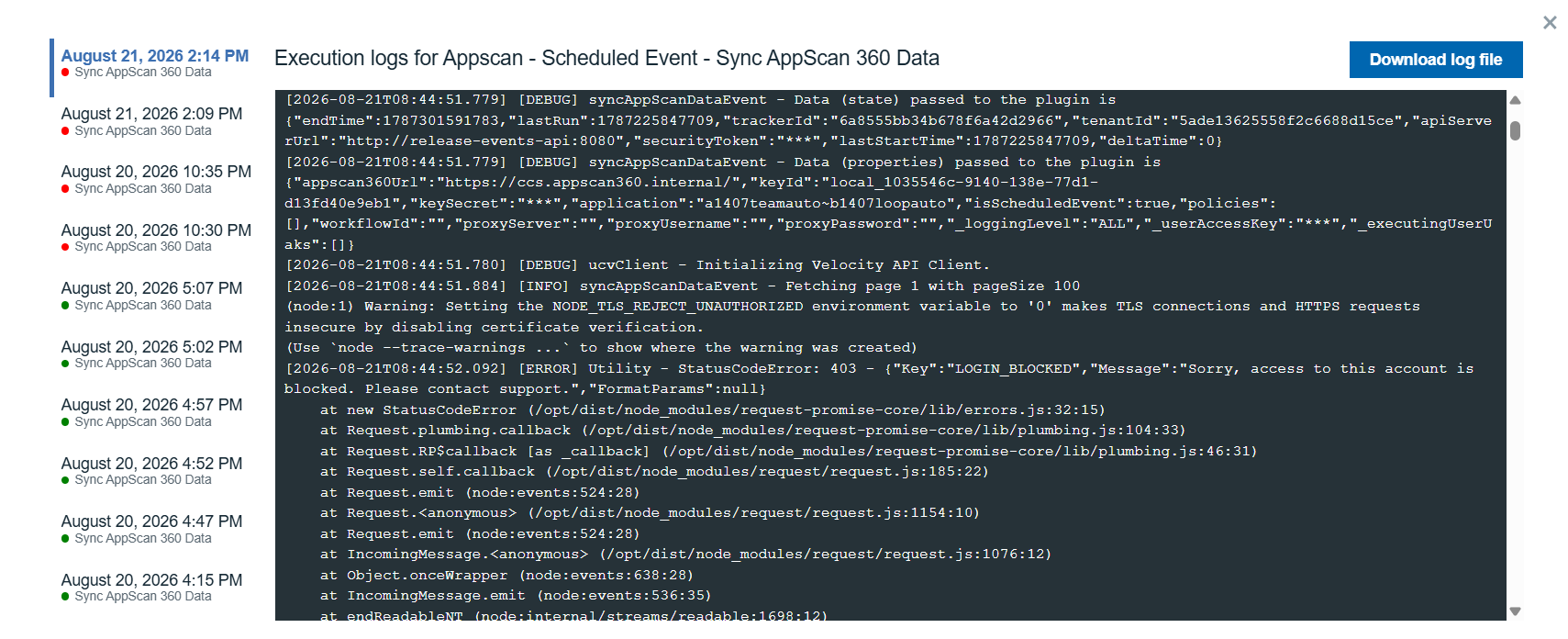
Login Blocked – Access Key Changed
Solution:
Create a new access token and update the AppScan360 plug-in configuration with the new token.
Application Name Mismatch
The application name configured in Pipeline/VSM must match the application name configured in AppScan360 for the scan results to be correctly associated.
Scheduled Event Configuration Issue
Ensure "Run as a Scheduled Event" is enabled during configuration; otherwise, syncing issues may occur.